Platform reference
Chapter Leader Guide
Step-by-step platform help: invitations, permissions, training, sessions, paperwork, and filings.
Sign in and find your chapter
Open CLEO in a regular browser tab, sign in with your CLEO Slack identity, and open the right chapter. Officers and advisors use the chapter workspace. Ordinary volunteers use the chapter's public registration link and their private emailed status page; they do not need leadership access.
If you are joining leadership, follow your invitation and finish setup with the invited identity. If you are requesting a role, use Join your chapter's leadership in the CLEO Slack app. Joining Slack alone does not grant the role. Ask National to resolve an incorrect email or duplicate identity rather than creating another account.
Use the links at the top of the workspace to reach Checklist, Saved submissions, Volunteers, Paperwork, Venues, Sessions, and Team. After submitting, read the message below the chapter name and check the resulting record. A saved request can still be waiting for a decision. Sign out on shared devices.
Checklist and permissions
The live checklist groups items into Do now, Up next, and Done. Complete the underlying task and refresh; you cannot manually tick a requirement complete. Some items are recommendations, such as leadership continuity, while agreements and clearance can block activity.
Student leaders can handle routine roster work, training confirmations, completed session logs, reports, and renewal without an adult approval solely because of their age. Permission to appoint another leader depends on the submitter's role. An adult advisor must accept the advisor and safety responsibilities. Adult review remains relevant to guardian concerns, insurance, and agreement sends by minors.
Use the chapter's accepted advisor for those local reviews. National can help resolve exceptions. Being an adult officer does not automatically make someone an advisor or an authorized signer for a school or venue.
Volunteers
Register and read the roster
- In Share your sign-up link, select Copy, or manually copy the displayed public address.
- Share that address with prospective volunteers. They enter their details and handbook acknowledgment. A minor supplies guardian details for the required consent; an adult signs for themselves.
- Find the person under Roster / Volunteers and expand What's needed? to read their remaining requirements.
Only share the public chapter registration link. Individual signing, guardian-management, and status links are private. New link replaces the public registration address and retires the old one; update any flyers and messages afterward.
| Status or message | What to do |
|---|---|
| Registered / awaiting signature / awaiting parent | Check who is expected to sign and whether the request was accepted for sending. |
| Email issue | Read the delivery explanation; repeated clicks do not resolve a provider quota or incorrect address. |
| Consent needed | Read the consent explanation. A previous signature does not override missing or withdrawn consent. |
| Signed | Check the other steps, especially current-year training. |
| Needs review / verify | Ask the chapter's accepted adult advisor to review the stated guardian concern. |
| Cleared | Individual roster requirements are met; chapter, venue, and supervision requirements still apply. |
| Access on hold | Ask for help resolving the restriction. |
| Onboarded mark | Training is recorded for the displayed year, independently of the signature. |
Resend permission or resolve an email issue
Find the correct person and select Resend once when it is available. It uses the recorded recipient; it does not edit their email. Ask that person to check their inbox and spam folder and open their own link.
A successful send means the provider accepted the message, not that it reached the inbox. The platform limits repeated sends for the same request to avoid duplicate mail; wait at least five minutes before another attempt. A daily or monthly provider quota needs National's attention. A signed waiver does not need another reminder just because training is missing.
The guardian's signing email also contains the applicable consent-management link. Keep that with the guardian. For a typo or ongoing delivery failure, ask National to correct the record and report the exact message.
Guardian review and removal
Sharing an IP address by itself does not create a guardian-verification hold. If another concern remains, the accepted adult advisor should establish that the actual guardian made the decision before using Verify & clear. Do not attest without checking. National can assist when the local review cannot be completed.
To remove an ordinary volunteer, select their X, read the confirmation, and check the result. This ends the current registration or membership while preserving history. It is separate from a guardian withdrawing consent and from cancelling a leadership invitation. There is no self-service undo; ask National about a mistake.
Training
Open the volunteer training slides linked directly in Volunteer onboarding. Use the year displayed there and run the training before confirming completion. Keep the slides available for later joiners.
- Compare the actual training attendance with the current roster.
- Confirm that every current ordinary volunteer missing the year's mark completed training.
- Select I ran onboarding with my volunteers and confirm.
- Refresh and check training marks and any other remaining clearance requirements.
This confirmation is a group action with no attendee picker. It marks all current ordinary volunteers missing that year's training mark. If only some attended, ask for help recording accurate training instead of confirming the entire group. Opening the slides alone is not proof of completion.
To correct an incorrect training mark, use that person's return-arrow onboarding control and confirm. Their signed paperwork remains. An annual training reset does not by itself mean the person must sign another waiver.
Sessions
Log a completed visit
The Sessions form records past or today's visits and named attendees; it is not an advance RSVP or scheduling tool.
Check that your chapter can operate, required agreements are complete, the venue is active, and participants are eligible. A chapter with minors needs an accepted advisor. Required insurance must cover the actual visit date.
- Select the actual date and correct active venue.
- Enter everyone's combined Total volunteer hours. Three volunteers each serving two hours means 6.
- Check each person who actually attended and review the names and total.
- Select Log session once and check the resulting log and individual totals.
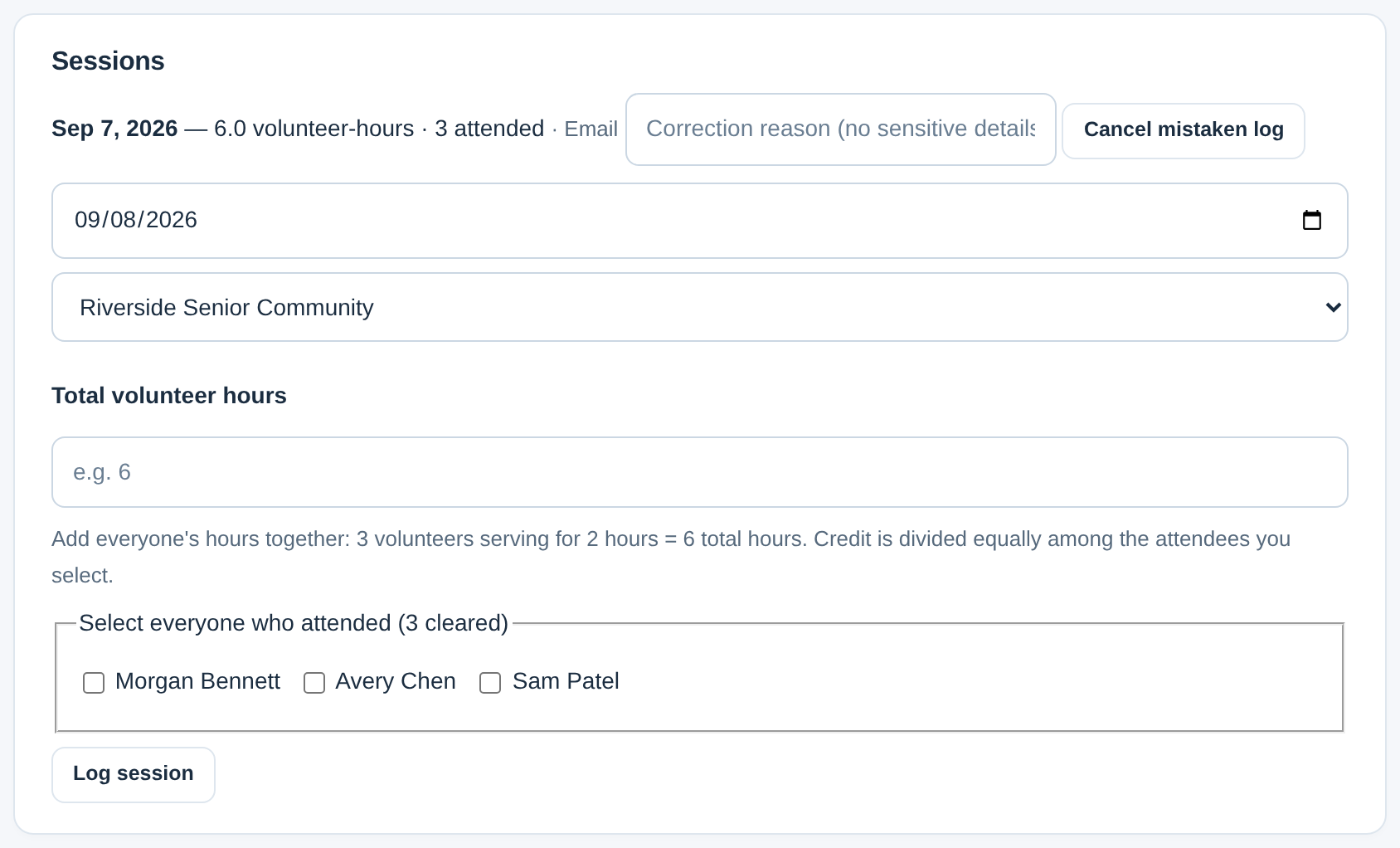
Credit is divided equally among selected people, in tenths. For different individual durations, keep accurate attendance and ask for help rather than reporting an inaccurate split. Enter positive hours with at most one decimal place, within the form's limits. Check officers' training as well as the volunteer roster.
Only the ten most recent logs appear in this area. Older records still count. Current clearance checks can block entering an older visit after someone leaves or a requirement expires; ask for help instead of changing the service date or falsely marking training complete.
Correct hours and download a service letter
There is no in-place session editor. Find the mistaken recent log, enter a meaningful Correction reason of 5–500 characters, and select Cancel mistaken log. Check that it is excluded from credit, then enter the accurate replacement. Cancellation preserves history but has no restore button. Ask National about older logs that are not displayed.
After correcting attendance, select Service letter on an eligible cleared volunteer's row. Review its name, chapter, hours, session count, and first recorded date. Share privately with the intended recipient. The letter covers this chapter's recorded completed attendance without a date filter; report totals do not add credit. Obtain any supervisor certification required by the recipient. Replace earlier inaccurate letters when correcting hours.
Team and advisor
Invite and activate a role
Under Team / Leadership, enter the correct name, email, and role and select Invite. A current authorized leader can invite someone; other officers' nominations can require review because of their appointment permissions. Any active chapter officer can nominate an adult advisor, who must still join and accept the responsibilities.
The invitation gives joining instructions. Ask the recipient to finish CLEO setup with the invited identity. Check active leadership separately from pending invitations. Adding a person to the team does not automatically complete their personal setup or advisor acceptance.
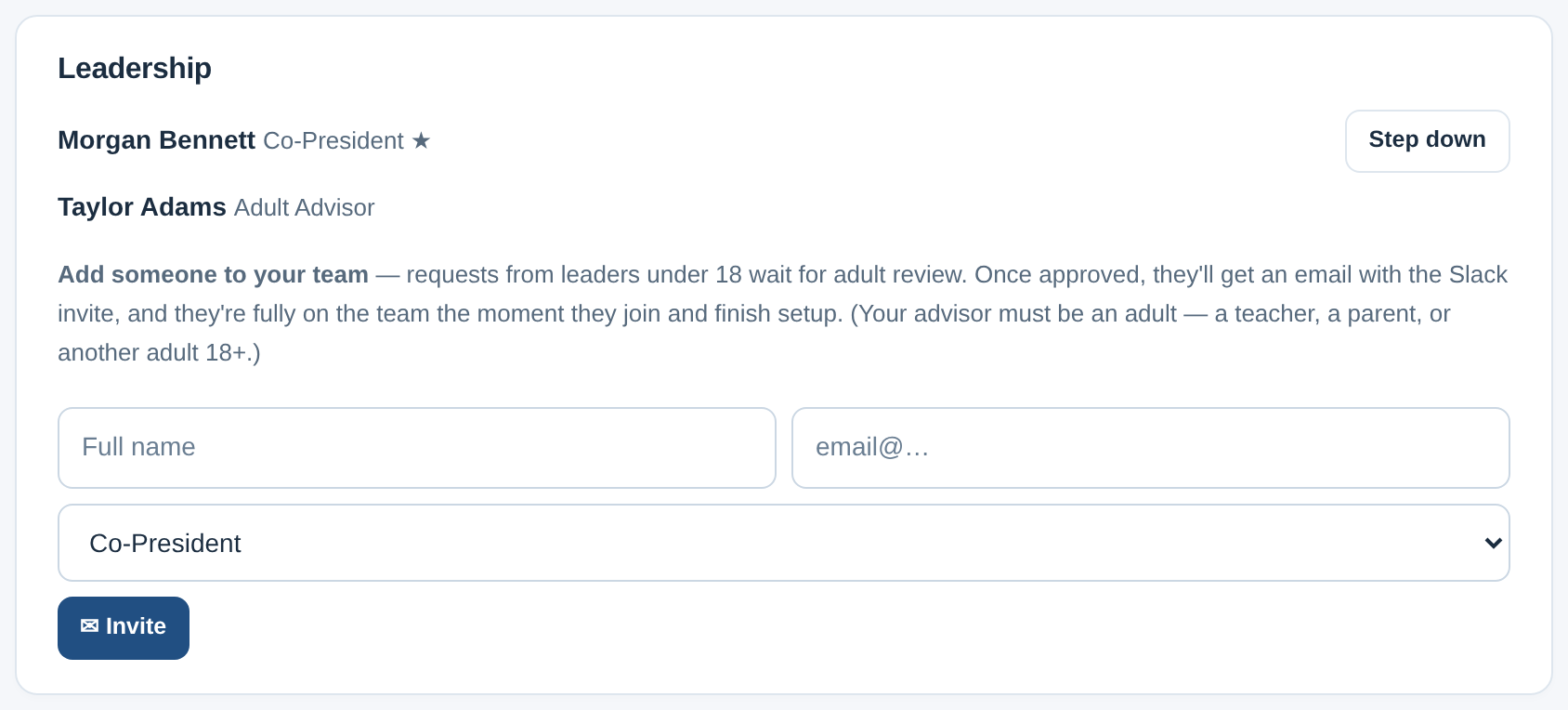
Resend uses the existing invitation email and does not fix a typo. If invitation cancellation or an edit fails, ask National to correct the existing record before inviting again. This form is not a general editor for an already-active leadership role.
Accept advisor responsibilities
The advisor signs in personally and opens Accept advisor responsibilities on the chapter page. They read and accept the advisor/continuity duties and the adult safety-contact duty, then select Record acceptance.
The optional Chapter License signing-authority statement is a separate decision: select it only if actually authorized and willing to sign. The card disappears once the core responsibilities are accepted. Ask National about later changes to optional signing acceptance or a missing card.
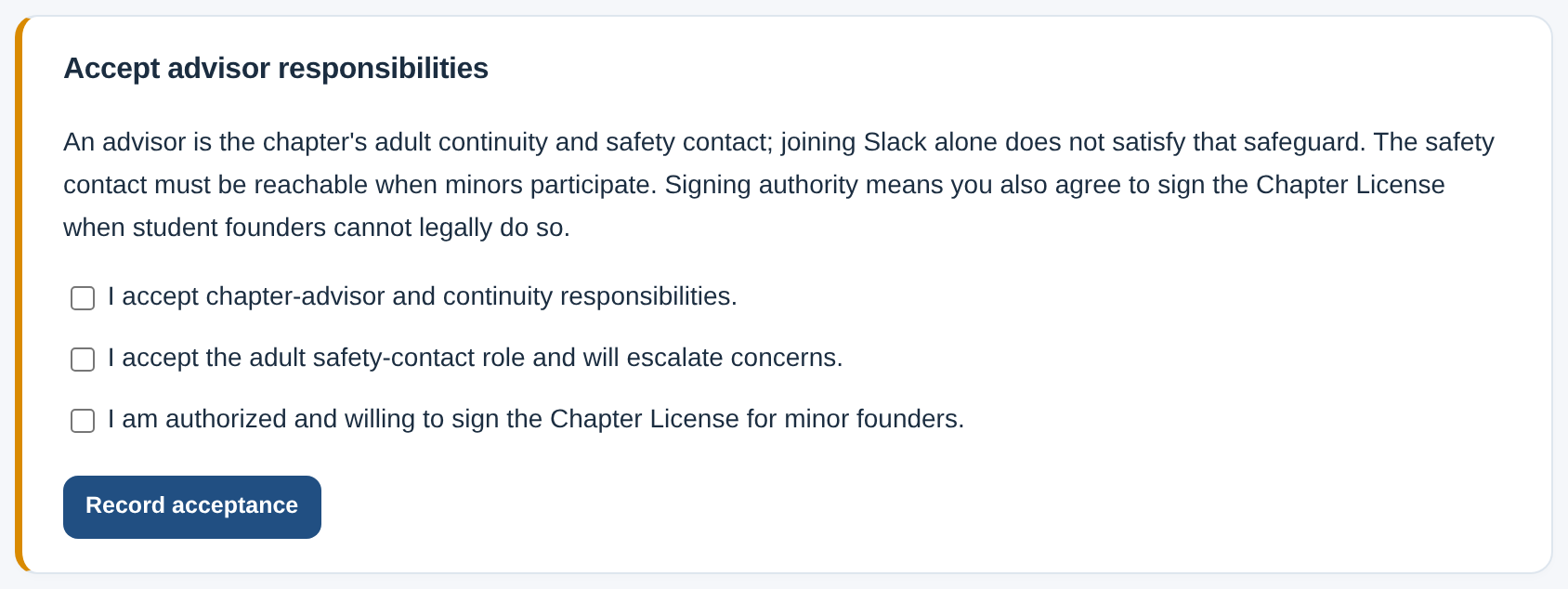
If Adult advisor setup required appears, read whether the advisor is missing, invited, or still needs to accept duties. Follow the displayed action. Agreement emails can remain blocked until this is complete. An administrator receiving a School Agreement is not automatically registered as an advisor.
Handover and departure
Respond to CLEO's personal leadership check-ins and keep contact and graduation information current. Read the date produced by a departure or extension action. A planned departure at year end is different from immediately ending a role, and person-level dates can affect multiple chapters.
For an immediate departure, arrange the handover first, find your own role, select Step down, and confirm only when ready. The role and chapter-channel access end; workspace access may end too. There is no self-service undo. Invite successors and verify their access beforehand. Contact National for another person's removal or an incorrect record.
Paperwork and venues
Send the School Agreement
When Send your School Agreement appears, confirm the appropriately authorized school representative, enter their name and email, and select Send agreement. For a minor submitting the send, the accepted advisor reviews the recipient and arrangements before the signing email goes out.
Read Your paperwork to distinguish Draft, Pending send, Awaiting signature, and a completed Signed document. A saved recipient or approved chapter application is not a sent agreement. An individual signature may not yet complete every party's signing step.
Add the correct venue
Under Where you volunteer, add the venue's name. It starts as prospective. Choose its real type, enter the representative's name and email, and select the available send action. A minor's send waits for the appropriate adult review.
- A senior-living residence uses the Facility Agreement.
- A library, community center, or school-based program uses the supported Host Acknowledgment flow.
- Virtual and other arrangements need National review.
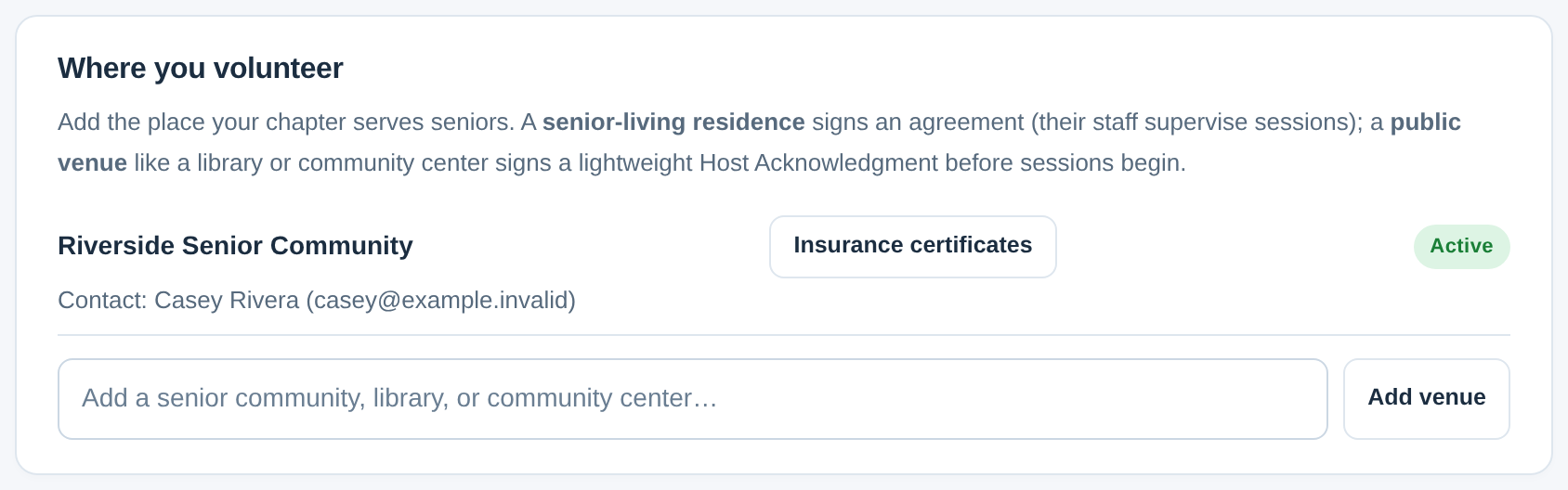
After signing, refresh and check that the venue is active. Complete any applicable insurance requirement separately. Adding the name or sending an email alone does not authorize service. Ask National about renaming, duplicates, closure, or a change after signing; this page has no general venue editor.
Correct a pending send or document
For your own pending request, use Cancel / correct and re-enter the right details in the original form. Entering a second email while a send is pending does not replace its recipient.
The reviewer can select Approve and send or Return for correction with a useful note. Check your CLEO direct messages for a returned request's note; ask the reviewer if it is missing. Approval starts the signing workflow, not guaranteed inbox delivery.
A recipient who needs changes should use the document's change-request option when offered or contact CLEO before signing. Ask National to handle already-sent or signed documents through the correction/replacement process. Download executed PDFs only for their intended audience and keep private links private.
Insurance
Open Insurance certificates for the correct venue. A leader can upload evidence; a facility representative can also submit through a current Facility Agreement signing link. The accepted adult advisor reviews it, with National available for exceptions.
Check the actual agreement's requirements. The standard Facility Agreement currently requires general liability coverage for volunteer activities of at least $300,000 per occurrence. A School Agreement or Host Acknowledgment alone does not impose that facility requirement. Seeing an upload link is not itself evidence that a school must provide insurance.
- Enter the insured organization, carrier, policy number, per-occurrence dollar amount, and effective/expiration dates from the evidence.
- Choose the actual PDF, PNG, or JPEG, no larger than 5 MB.
- Select Submit certificate for review and check the saved submission. Saved does not mean approved.
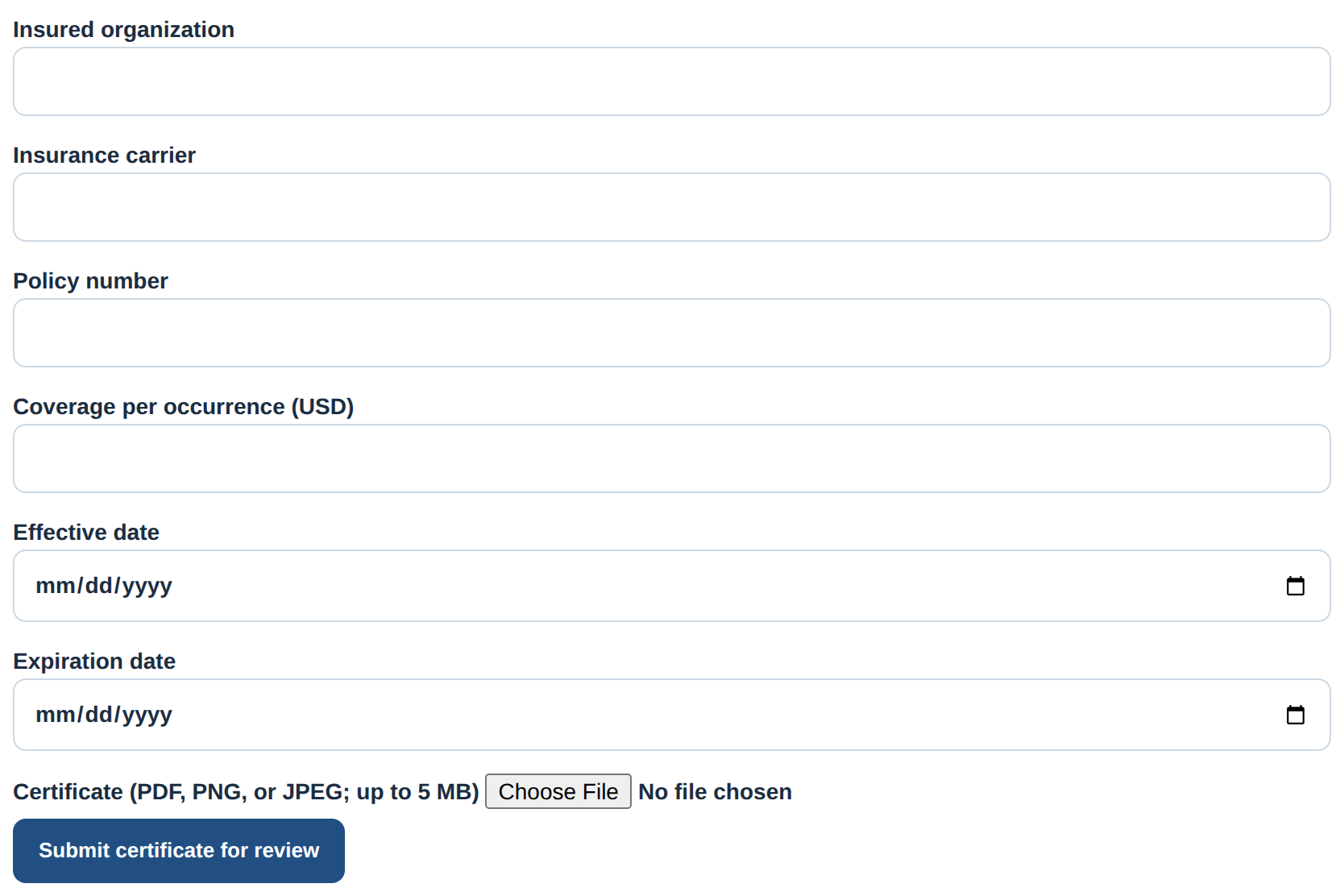
After a validation error, correct the details and reselect the file. Renaming a file extension does not convert it.
The reviewer downloads the evidence and checks the organization, dates, amount, and relevant coverage before approving. If changes are needed, they write a specific correction note and Return for correction. Upload a complete replacement; earlier evidence and decisions remain. Tell the reviewer if an earlier approval was wrong, because another upload does not automatically invalidate it.
The page's coverage badge refers to today. Session entry checks coverage on the actual service date. Ask about a gap rather than changing dates to make a form pass.
Renewal and year changes
Use the year and due filing shown in your workspace. Current configured chapter-year boundaries are August 1–July 31, with annual renewal ordinarily opening August 15 and due September 30. Newly approved chapters within the current chapter year are not supposed to renew again during that first fall. Ask National if a newly formed chapter shows a contradictory deadline; do not create a duplicate chapter to avoid it.
Chapter renewal, volunteer training, and individual consent are separate records. Current platform behavior carries valid consent forward while requiring annual training. Missing, withdrawn, or otherwise unresolved consent still prevents clearance. Renewal does not silently make an expired or withdrawn permission valid. Earlier operation slides described annual resubmission of all volunteer forms; that conflicts with current behavior and requires a National policy decision. If you receive conflicting instructions, ask National before collecting duplicate forms or claiming clearance.
When Annual renewal is due appears:
- Agree with the team whether the chapter continues and which leaders remain.
- Choose the accurate continuation answer. Choosing to pause/close can make the chapter inactive.
- Review continuing officers carefully; unchecked names can lose their roles. Coordinate advisor departures with National.
- Enter the requested advisor, activity, and successor information, then select File renewal.
- Check the resulting chapter status and leadership list.
New leader names in a text field do not automatically invite them; use Team separately. An advisor invitation still needs joining and acceptance. Contact National about an already-filed mistake or a suspended/archived chapter; renewal is not permission to lift a restriction.
Reports
When Semester report is due appears, use records for the displayed term, not lifetime totals. Enter active volunteers, combined volunteer hours, different seniors served, topics, activities, and useful successes or requests for support. Count each senior once within the term; for new seniors, count the subset not served previously when known.
Review the form and select File report once. Check the result and any other overdue filing. If the form prevents an accurate value or cannot represent uncertainty, ask National rather than substituting a misleading number. The platform does not automatically fill this report from session attendance, and report totals do not change individual service-hour credit. Ask National about a filed correction.
Saved submissions
Saved submissions holds older saved chapter actions and matters that require appointment review. Routine actions no longer wait merely because the requester is a minor. An authorized requester can explicitly apply their own previously held routine work using the available control. Review the saved details first; the system does not silently replay old requests.
If your pending request is wrong, select Cancel / correct submission and re-enter it accurately. An authorized reviewer can apply it or return it with a correction note. Requirements are checked again when it takes effect. Confirm the resulting roster, filing, log, or invitation rather than treating a queue message as the final record.
Paperwork separately holds agreement sends. Use the accepted chapter advisor for those local adult decisions. If an action errors, inspect its result before retrying; avoid duplicating an action that actually completed.
Safety and help
You do not need adult approval to report a concern. Use Report an incident in the workspace or the public safety form, including when unable to sign in. For immediate danger, use the appropriate local emergency response first. The public form offers optional contact details and confidentiality from chapter leadership. Keep sensitive information out of ordinary chapter chats.
For ordinary support, include your chapter, task, exact error, time, and what you already checked. Use the chapter Slack channel or CLEO National's contact shown in the application. Remove private signing links and unrelated personal details from screenshots.
| Problem | First check |
|---|---|
| No administrator email | Is the chapter's advisor accepted? Is the agreement still pending send? Check delivery status only after it was actually sent. |
| No permission email | Correct guardian/adult recipient, spam folder, roster's delivery explanation, and resend cooldown. |
| Missing attendee | Membership, account status, waiver, required consent, current training, and chapter/venue requirements. |
| Access denied | Correct Slack identity and active leadership role; an invitation alone does not grant access. |
| Invalid request origin / submission could not be verified | Preserve the draft, reopen the hosted form in a regular browser tab, and retry once. Report a recurring error with time and browser. |
| Unsure whether a submission worked | Refresh and inspect the actual saved record and any review queue before repeating it. |
Keep a private draft of long answers until saving is confirmed. Do not put incident drafts or bearer links into shared documents.